Loading page…

SDX-Mate
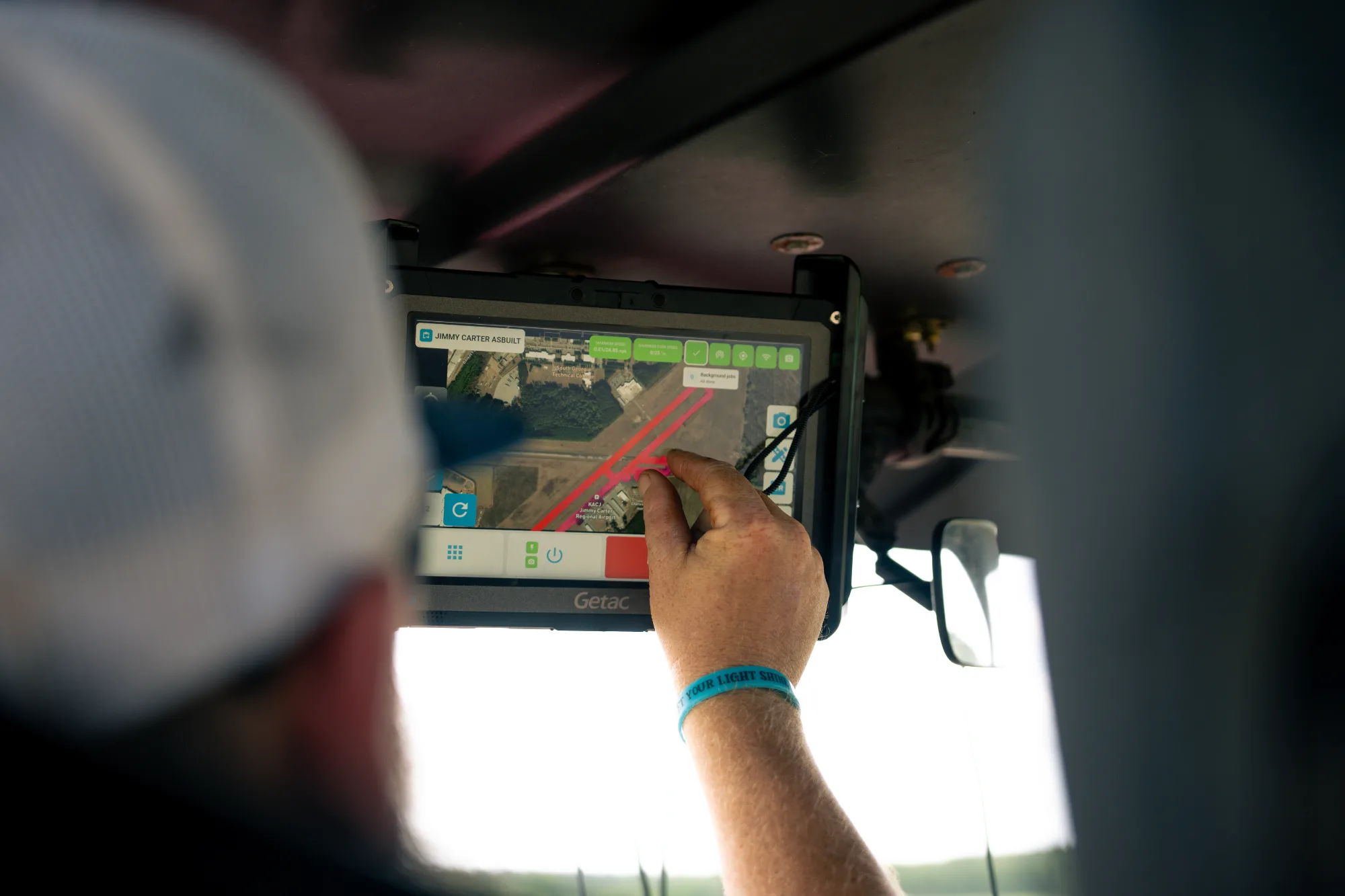
Choose your project, manage scans, and check system status directly on site. SDX-Mate runs on your Sodex scanning system and opens in the browser on your tablet, smartphone, or laptop. No app installation needed.
Your system on site. Your data in SDX-Cloud.
During setup, your team needs to know that the right project is selected and the system is ready. During the scan, clear status information helps you check that data is being recorded as expected.
SDX-Mate gives you direct access to your system in the field. Manage the local capture workflow, even without internet access on site. Once the system has an internet connection, captured data can upload to SDX-Cloud for processing, measurements, and documentation.
Ready for the work ahead.
Select the right project
Choose the SDX-Cloud project that should receive your captured data. Select the system profile that matches your equipment and setup before starting work.
Check live system status
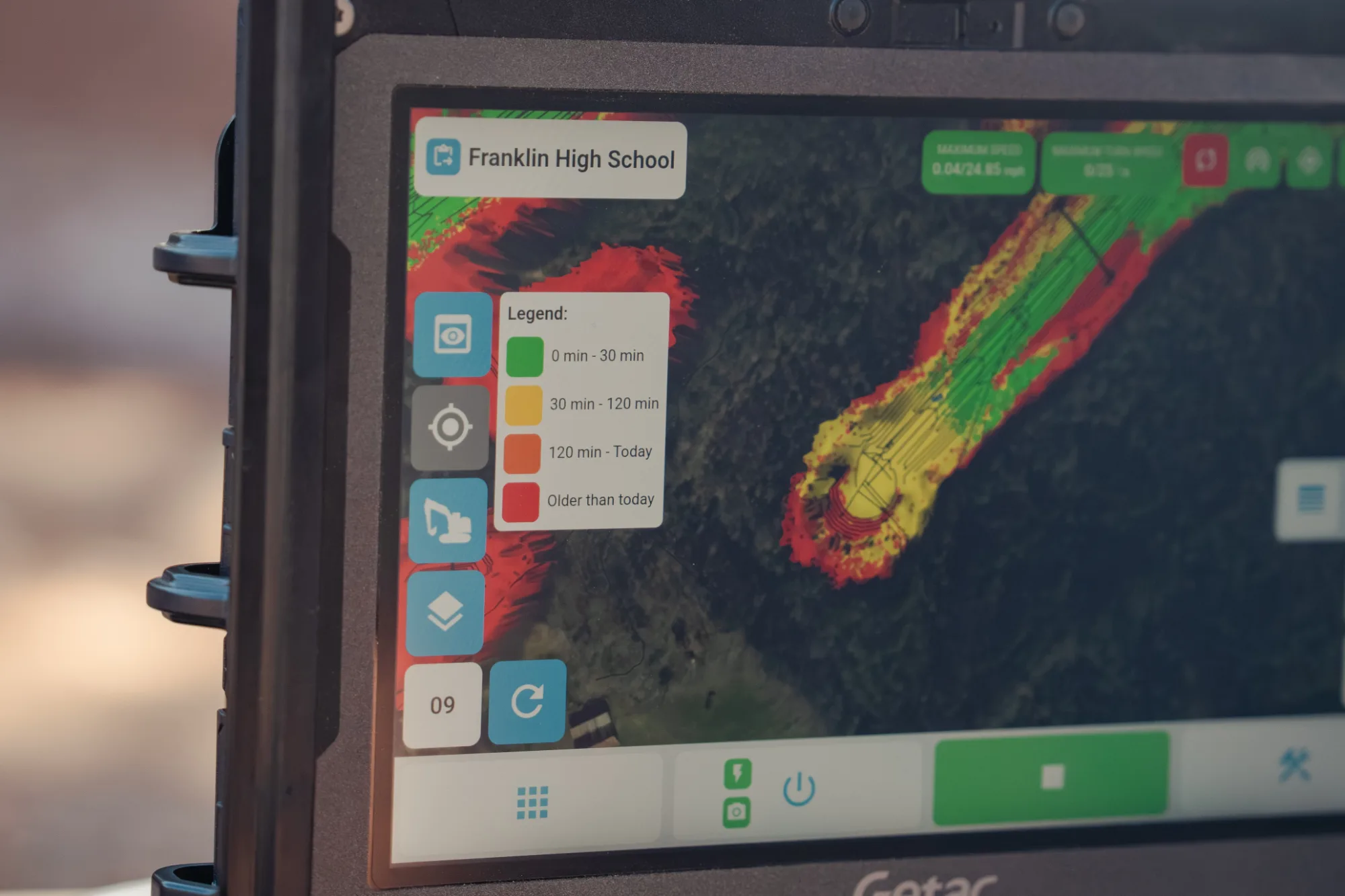
Review GNSS status, sensor feedback, and system information. Check that the device is ready and capturing data as expected.
Manage your scans
Start and stop scans, follow capture progress, and manage the workflow directly from your connected device.
Choose your capture mode
Use a 2.5D scan for routine terrain capture or a High-Res scan when more detail is needed. High-Res scans can take longer to process in SDX-Cloud.
Keep uploads in view
Check upload progress and see whether data transfers are still running. Confirm that uploads are complete before switching off the system.
Work with familiar settings
Switch between English and German, choose meters, feet, or survey feet, and select light or dark mode to suit your working environment.
From local connection to shared project data.
Connect your tablet, smartphone, or laptop to the system’s Wi-Fi hotspot and open SDX-Mate in your browser. No software installation is required.
FAQs
No. SDX-Mate runs directly on the Sodex system. You access it through a browser on your connected tablet, smartphone, or laptop.